
This is our autumn round-up of everything that has landed in Continuum Learn since the summer update. The headlines: learners can now use the platform in nine languages, Zoom sessions run inside lessons with attendance counted towards completion, surveys are built in, and a group of courses can award one numbered programme certificate.
Alongside those, live event recordings become replays on their own and streaming delivery costs less, the AI course builder reads PowerPoint and Word files, and groups and cohorts give you finer control over who sees what.
Everything below is live now and included on every plan. Here is the tour.
Key Takeaways
- Learner-facing pages, emails and certificates are available in English, Welsh, French, German, Spanish, Italian, Dutch, Portuguese and Canadian French. Switch languages on in Manage > Settings > General.
- A Zoom block in any lesson gives learners a session card with a countdown, calendar links and a Join button, and attendance can count towards course completion.
- Create > Surveys lets you build rating, scale, NPS, choice and free-text surveys, embed them in lessons or ask on course completion, and report on the answers.
- Programmes award one certificate for a set of courses, and every course and programme certificate now carries a certificate number and the date it was earned.
- Live event recordings become replays automatically, and streaming delivery rates have come down.
Learn in your language
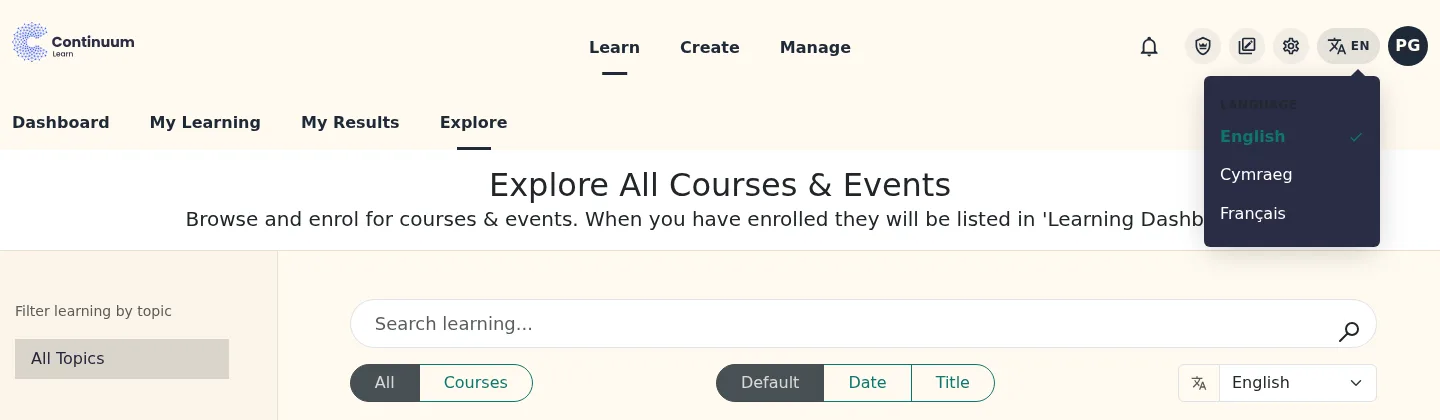
What it is: every learner-facing part of the platform can now be shown in nine languages: English, Welsh, French, German, Spanish, Italian, Dutch, Portuguese and Canadian French. That covers signing in and registering, the course catalogue, lessons, the learner dashboard and results, event watch pages, the emails the platform sends and the certificates it issues. Dates, numbers and prices are formatted for the language too.
How you use it: go to Manage > Settings > General, pick a Default language and tick the languages you want to offer. Nothing changes until you do: existing teams stay English-only. Once languages are enabled, a language button appears in the header for guests and members, the login page gains a language selector, and each person's choice is remembered on their account. New learners can pick a language when they register.
Courses have a language of their own. Existing courses were set to English; new ones take your team default, and you can change any course individually. Learners get a language filter in the catalogue, preselected to their own language, with one click to see everything.
Your own content can be translated as well:
- Custom sign-up and profile fields and their options, header and footer navigation labels, announcements and course folders each take a version per enabled language, with a Translate with AI button to draft it for you (in Manage > Settings and the folder modals under Create > Courses).
- System emails such as enrolment confirmations, reminders and completion messages arrive in the learner's language, and certificates render in it.
- SCORM packages and embedded publications carry their translations with them, so an exported course shows its navigation and controls in the course language.
- AI course generation writes in the course's language rather than defaulting to English.
Who it helps: bilingual organisations in Wales, membership bodies with international members, and anyone training teams in more than one country. Canadian French uses Québec terms rather than European French.
Zoom sessions inside lessons
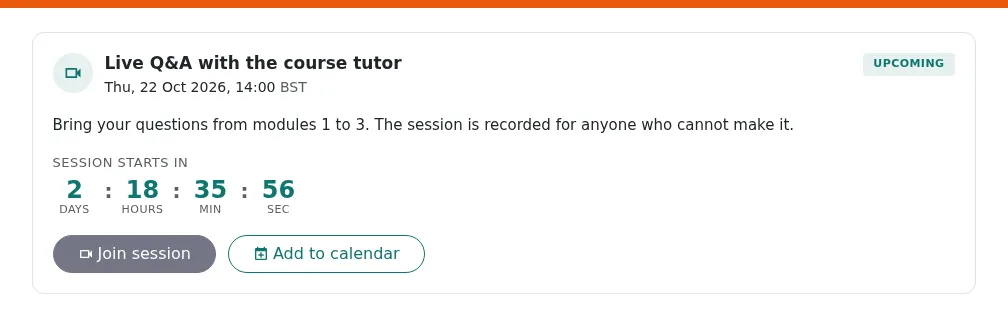
What it is: the Zoom block in the course builder has been rebuilt. Drop it into any lesson and either Paste an existing meeting link or choose Create in Zoom, which schedules the meeting on your Zoom account straight from the block and keeps it in step when you edit the lesson, with an optional host email if someone other than the default account should run it.
What learners see: a session card in the lesson, on the course page and on their dashboard. It shows the start time in the learner's own time zone (and the trainer's when they differ), a countdown, Add to calendar links for Google Calendar, Outlook.com, Office 365 and a downloadable .ics file, and a Join session button that opens 15 minutes before the start. When the session has ended, a Watch recording link appears if there is one. Join links are only ever handed out through that button, never in the page source.
Attendance and completion: each block decides how it counts as complete: When joined, When attended (a minimum number of minutes, taken from Zoom's own attendance data once the meeting ends) or When viewed. Attendance shows up in the course results under Manage > Reporting, with an Attendance panel listing who was there and for how long. Enrolled learners also receive reminder emails 24 hours and 1 hour before each session, in their own language and using your team's email templates.
Setting it up: pasting a link needs nothing beyond the block. Creating meetings from a lesson and tracking attendance needs your Zoom account connected once under Manage > Settings > Zoom, using a Server-to-Server OAuth app from the Zoom App Marketplace (you need to be an account admin on a paid Zoom plan, Pro or higher). The settings page walks you through it.
Surveys
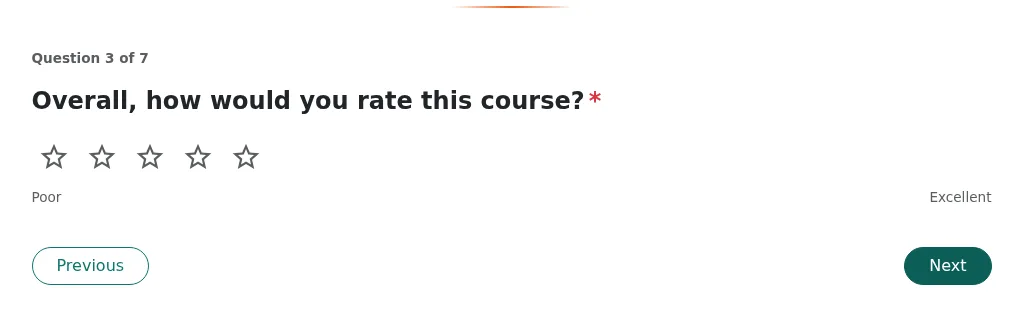
What it is: surveys are now a first-class part of the platform. Build one under Create > Surveys and use it in three places. Question types cover single and multiple choice, free text, 1 to 5 star or 1 to 10 ratings, Net Promoter Score (0 to 10), and Likert scales with 3, 5 or 7 points and editable labels, plus information slides between questions. Every response is tied to the learner who gave it, so you can follow up.
How you use it:
- Inside a lesson. Add the Survey block to any lesson and pick a survey. Tick Required to complete this lesson and the lesson is not finished until the survey is answered.
- On course completion. Every course now asks for feedback when a learner finishes it. The default is a quick star rating and comment; in the course settings you can switch the Completion survey to a Specific survey from your library, or turn it off. Learners who dismiss it can come back to it from the course page via Give feedback.
- As a standalone link. Each survey has its own learner page. Learners sign in and answer, so you can paste the link into the course follow-up email or send it on its own.
Reporting: every survey has a results page under Create > Surveys with response counts, a breakdown per question, the free-text answers with who wrote them, filters by source and course, and a CSV download. Each course's results page under Manage > Reporting gains a Survey Responses panel that brings together the surveys embedded in its lessons, its completion survey and the basic star ratings.
Who it helps: anyone who has to show funders, a board or an awarding body what learners thought, and course authors who want to know which lesson to fix first.
Programmes and numbered certificates
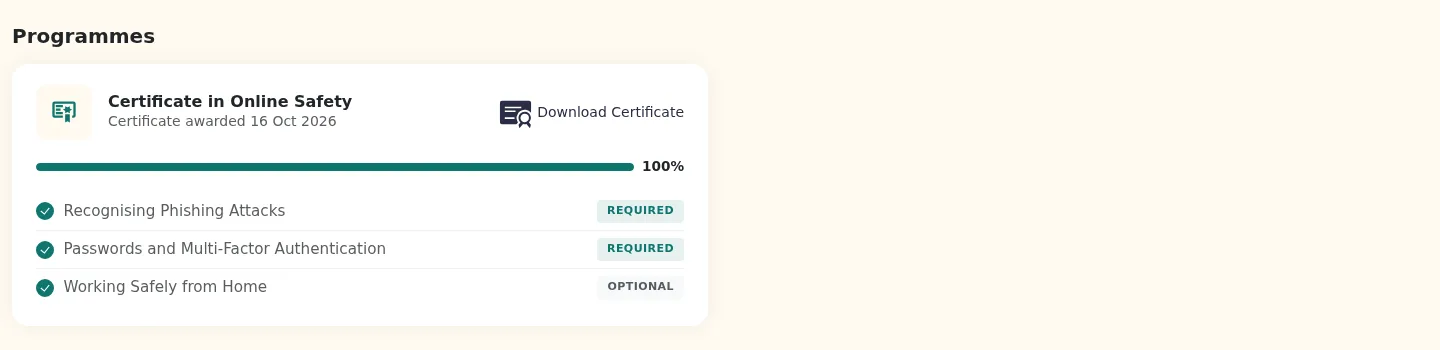
What it is: a programme groups courses that together earn a single certificate. Under Create > Programmes you pick the courses, mark each one Required or Optional, and say how many of the optional courses must be completed. That one rule covers "complete all of these", "complete any three of these six" and "complete every core course plus two electives".
How it works for learners: a Programmes section on the learner dashboard shows each programme they have started, their progress through the required and optional courses, and a Download Certificate button once it is earned. The certificate is awarded automatically the moment the last qualifying course is completed, including courses finished before the programme existed and courses completed through SCORM, and the learner receives an email. The PDF prints the date the programme was earned, not the date it was downloaded.
Certificate numbers: every certificate the platform issues, for a course or a programme, is now recorded with a unique certificate number and the date it was earned, and both are printed on the PDF. A learner can only download a course certificate once the course is actually complete, and administrators can download any issued certificate from Manage > Reporting. If someone asks you to verify a certificate, you now have a number to check against.
Live events: automatic replays and lower delivery costs
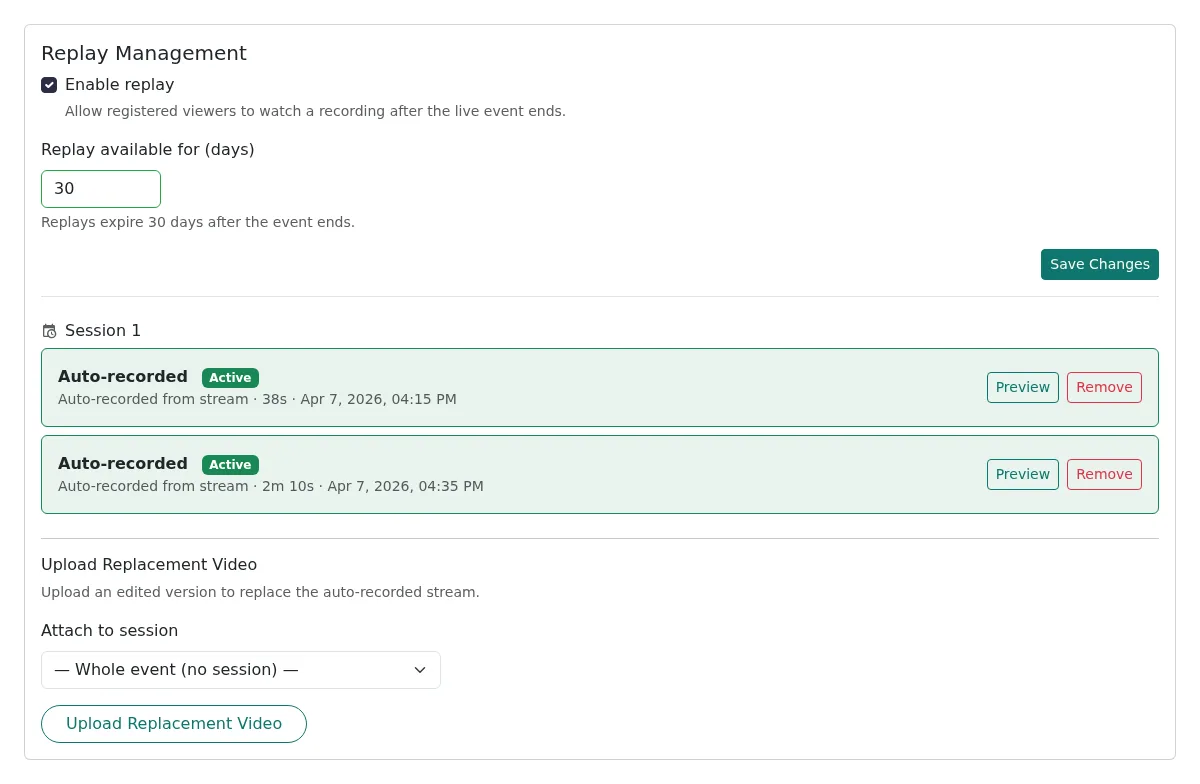
Automatic replays: when a live session ends, its recording now becomes the replay on its own, with no upload and no waiting for the whole event to finish. In a multi-session event each session gets its own replay, and viewers can watch a session back as soon as it has ended. Under Replay Management on the event (Create > Events) you tick Enable replay, set how many days the replay stays available, and see each recording labelled Auto-recorded from stream. If you choose a different replay yourself, the platform never overrides your choice.
Live sessions started from a lesson in the course builder (Open Broadcast Studio on the live block) are recorded automatically as well, so a live lesson keeps working as a replay for learners who missed it.
Also new on watch pages: viewers can pause and rewind a live stream; chat and Q&A can be switched on per event from the new Engagement tab, with a moderation view for pinning, hiding and answering; captions can be auto-generated on replays; and Watch Reporting now splits watch time into live and replay.
Lower delivery costs: new live channels use a more efficient HD encoding ladder, and streaming delivery rates have come down. Streaming delivery now costs between £0.0015 and £0.0025 per viewer-minute depending on volume and how the event is streamed, where it was a flat £0.0025 before. Your usage and the rates that apply to your account are shown under Manage > Settings > Subscription.
AI course builder reads PowerPoint and Word
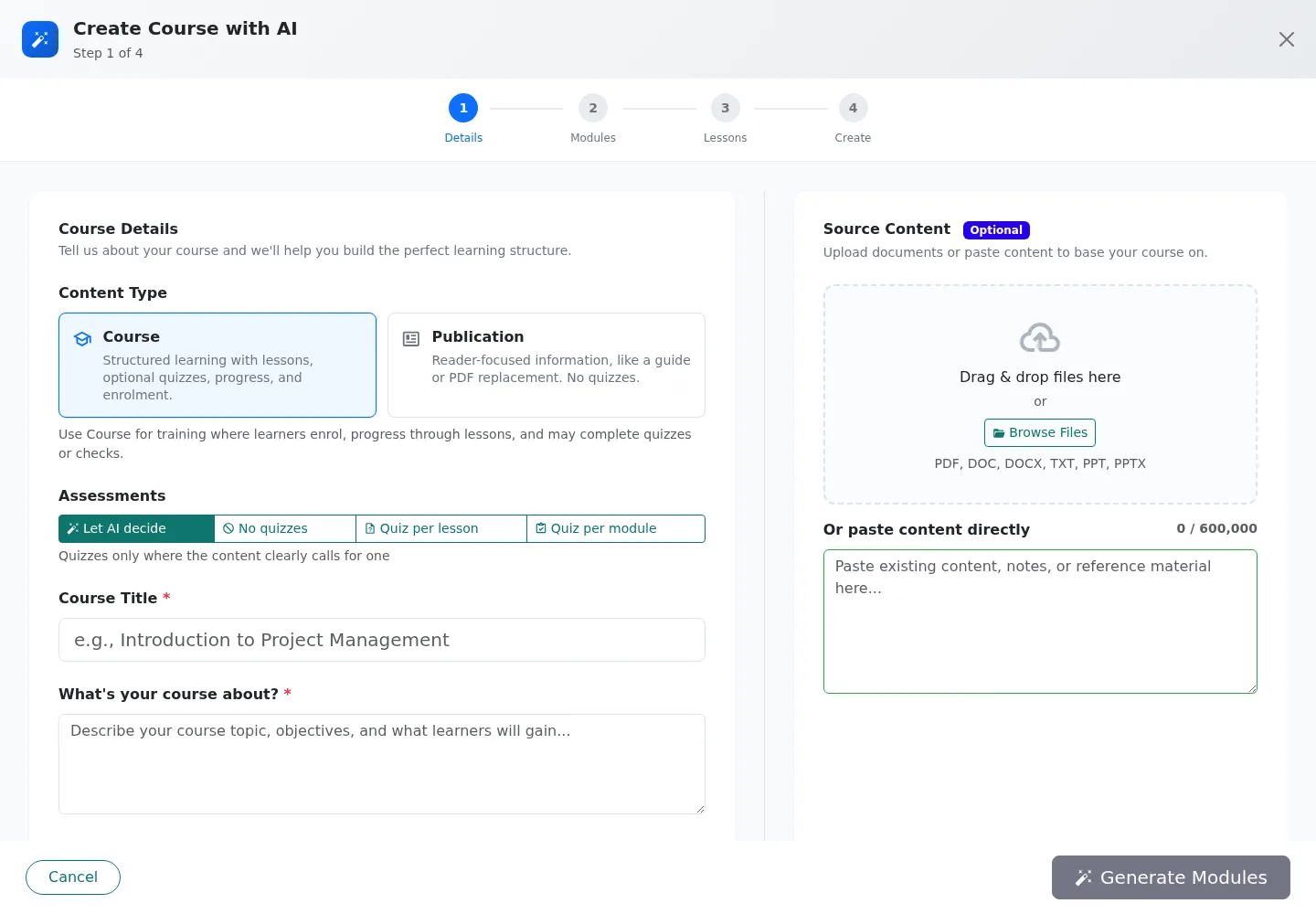
What it is: the AI course wizard (Create with AI under Create > Courses) now accepts PowerPoint (.pptx, .ppt), Word (.docx, .doc) and plain text files alongside PDFs. Office files go through a short Converting to PDF step and then the same extraction as a PDF, so charts and diagrams from a slide deck come through as figures in the right lessons.
Faster on long documents: figure detection now runs alongside page reading, long documents are processed in parallel rather than page by page, and the analysis of your document runs in the background instead of holding up the wizard. Temporary errors are retried automatically instead of failing the whole job, which matters most on a 100-slide deck or a 200-page manual.
Who it helps: anyone whose training material lives in slide decks and Word documents rather than finished PDFs, which in our experience is most people.
Groups, cohorts and Explore
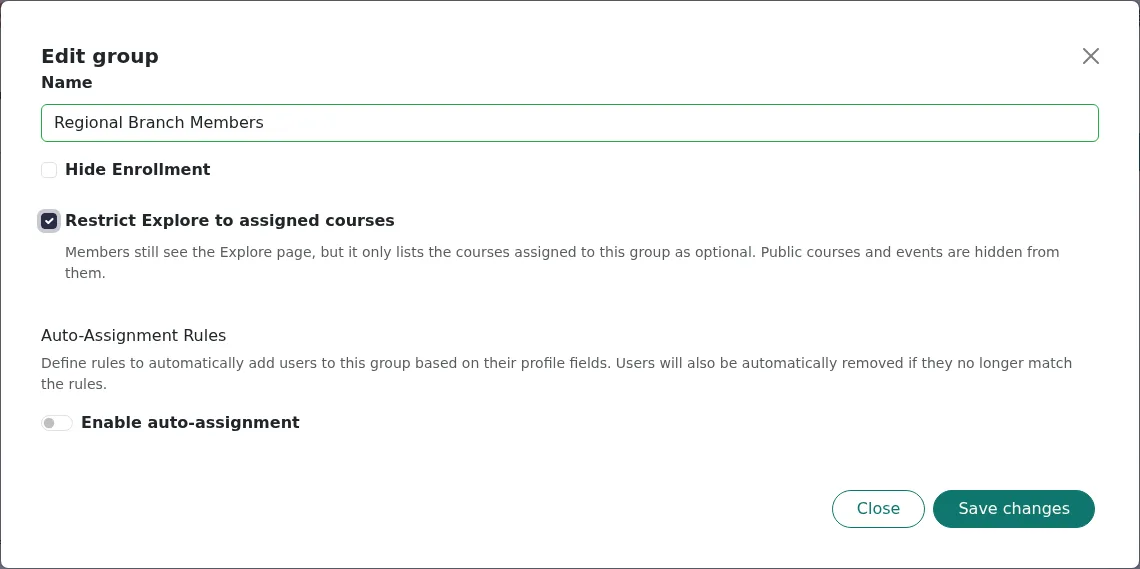
Groups: a new group setting, Restrict Explore to assigned courses under Manage > People > Groups, keeps the Explore tab visible to members of the group but limits it to the courses assigned to their groups. The public catalogue is left out for them. It replaces the old option that hid Explore entirely, so members always have somewhere to find their optional courses.
Cohorts: under Manage > People > Cohorts there is a new Broadcast Access (live events & VOD) filter, which selects everyone with current access to the events you choose, matching any or all of them. Teams running video and events can then target a notification under Manage > Notifications at a broadcast, a cohort, or both.
Smaller improvements
- Page SEO: every page in the page designer (Create > Pages) now has Meta Title and Meta Description fields for search results and the browser tab.
- Your platform on your own domain: teams with a custom domain can opt in to Direct Hosting under Manage > Settings > Domain, so the platform is served on your domain rather than redirecting to your team address. Ask us to switch it on for your domain.
- Checkout: continuing without agreeing to the terms now shows a clear message, "Please tick the box to agree to the Terms of Sale before continuing", instead of a button that does nothing.
- Purchases: Manage > Purchases separates incomplete orders into Abandoned and Failed tabs, with the card decline reason shown on failed orders.
- Single sign-on: when someone signs in through your identity provider with an email that already has an account, they are asked to confirm before the two are linked, and SSO sign-in now works consistently on custom domains.
- Embedded publications: publications embedded on your own website now lay out exactly like the learner page, with the same columns, spacing and type sizes.
- Email links: verification links last 24 hours, and an expired link now explains what happened and how to get a new one rather than showing an error.
- Email images: your logo and course images in platform emails now display correctly in Outlook and other desktop mail clients.
- Course builder: click a course or module title to rename it in place.
Conclusion
Everything above is included on every plan, with no upgrade tiers or add-on modules. If you would like a guided tour of any of it, book a demo and we will walk you through it. If you are weighing up a move, our pricing is published, with a discount for registered charities and non-profits.
If you are already a customer, the quickest win is in Manage > Settings > General: tick the languages your learners speak and the language switcher appears in your header straight away.
And if there is something you would love to see next, tell us. Most of what you have just read started life as a customer request.
Found this useful? Share it with your network
Ready to transform your training?
See how Continuum Learn helps organisations deliver impactful learning experiences at scale.